
Google Calendar for Digital Signage Display
Kitcast’s Google Calendar integration keeps your schedules in sync with your screens, updating automatically and effortlessly. Make any change in Google Calendar and it instantly shows up on your digital signage, so everyone sees the latest updates. Display team schedules, company events, shift rotations, or any other timing information. Simplify scheduling with Kitcast’s Google Calendar integration and make every update visible.
Sign up in under a minute.
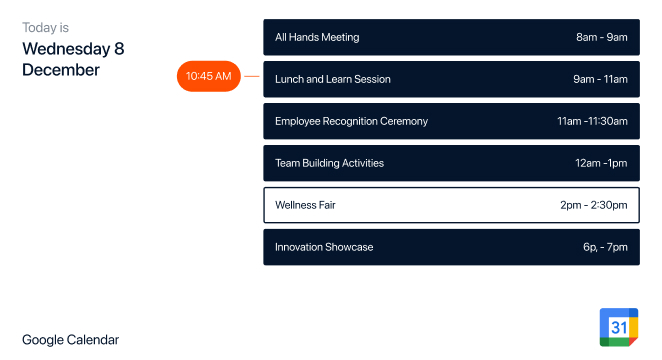
How to Use the Google Calendar Integration on Digital Signage
Log in to your Kitcast account, go to the apps library, and click “Google Calendar”.
Authorize Kitcast to access your Google Calendar by following the prompts. Select the calendar(s) you want to display.
Configure how the calendar will be displayed on screens. Set up timing and integration duration, and choose slide type.
Add the integration to your content playlist. Run the playlist across your screens and keep an eye on your calendar on digital signage.

Features That Ensure Automated & Accurate Calendar Display

Real-Time Synchronization
Digital signage pulls data directly from Google Calendar to reflect the latest changes.

Customizable Calendar Display
Fine-tune your calendar layout for a professional, on-brand display.

Multi-Calendar Support
Display events from multiple calendars on a single screen.

Daily, Weekly, or Monthly View
Choose the calendar view that works best for your time-view needs.

Event Scheduling
Schedule events in your Google Calendar, and Kitcast will automatically display them.

Holiday Integration
Automatically show public holidays and special days from Google Calendar on your screens.
Seamless Google Calendar Integration for Any Industry
.webp)
.webp)
.webp)
Explore Other Widgets


Frequently Asked Questions
Absolutely! Display your Google Calendar on multiple screens, as you can send this content to a group of screens, not only one. Just select a specific bunch of screens you want your calendar to be featured on, and get it running there.
Yes. Kitcast allows you to set up how your Google Calendar will be displayed on digital signage. You can choose from slide types like a day, week, or month.
You can also add Kitcast’s Microsoft Calendar widget to your digital signage.