Table of Contents
Your customers are already creating content, writing reviews, and sharing experiences online every day, but if those posts stay hidden on phone screens, you are missing a massive opportunity. A social media wall solves this by bringing that digital excitement into the physical world, turning user feedback into powerful social proof that catches the eye.
You might think setting this up requires a degree in IT, but it is actually quite simple. This guide will show you exactly how to use Kitcast to create a stunning, automated feed for your business. We will walk you through every step, from connecting your accounts to publishing your content, ensuring you can turn your digital signage into a dynamic engagement tool in just a few minutes.
What is a Social Media Wall?
Before we jump into the buttons and clicks, let’s define what we are building. A social media wall is a digital feed that aggregates posts from social platforms like Instagram, Twitter (X), Facebook, or TikTok and displays them on a digital signage screen.
It is not just a static picture. It is a living, breathing stream of content. It updates in real-time. It keeps your content fresh without you having to lift a finger.
For businesses, this serves three main purposes:
- Social Proof: It shows potential customers that real people love your brand.
- Engagement: It encourages visitors to post more using your hashtags so they can see themselves on the screen.
- Content Automation: It fills your screens with high-quality visuals so you do not have to design new slides every day.
If you are wondering how this fits into your broader goals, you might want to read our article on how to create a digital signage content plan. It explains why mixing social feeds with your branded messages is a winning strategy.
Prerequisites: What You Need Before Starting
To follow this guide, you will need three things ready to go.
- A Kitcast Account: You need access to the Kitcast Dashboard. If you haven’t signed up yet, you can do so on the Kitcast website.
- A Screen and Media Player: This could be an Apple TV, an Amazon Fire TV Stick, or an Android TV device linked to your account.
- Social Media Credentials: You will need the login details for the social accounts you want to display (e.g., your business Instagram or Twitter login). Note that for Instagram, you often need a “Professional” or “Business” account to allow third-party apps to connect.
Once you have these, you are ready to build.
Step 1: Log In to Your Kitcast Dashboard

The journey begins at your command center. Open your web browser and log in to the Kitcast Dashboard.
This is where the magic happens. You will see your screens listed, your playlists, and your media library. Take a moment to familiarize yourself with the layout if you are new here. The interface is designed to be clean and intuitive, so you won’t get lost.
If you are managing screens across many different stores or offices, you might want to group them first. We have a great guide on how to scale digital signage across multiple locations that can help you organize your network before you start adding content.
Step 2: Select the Widget

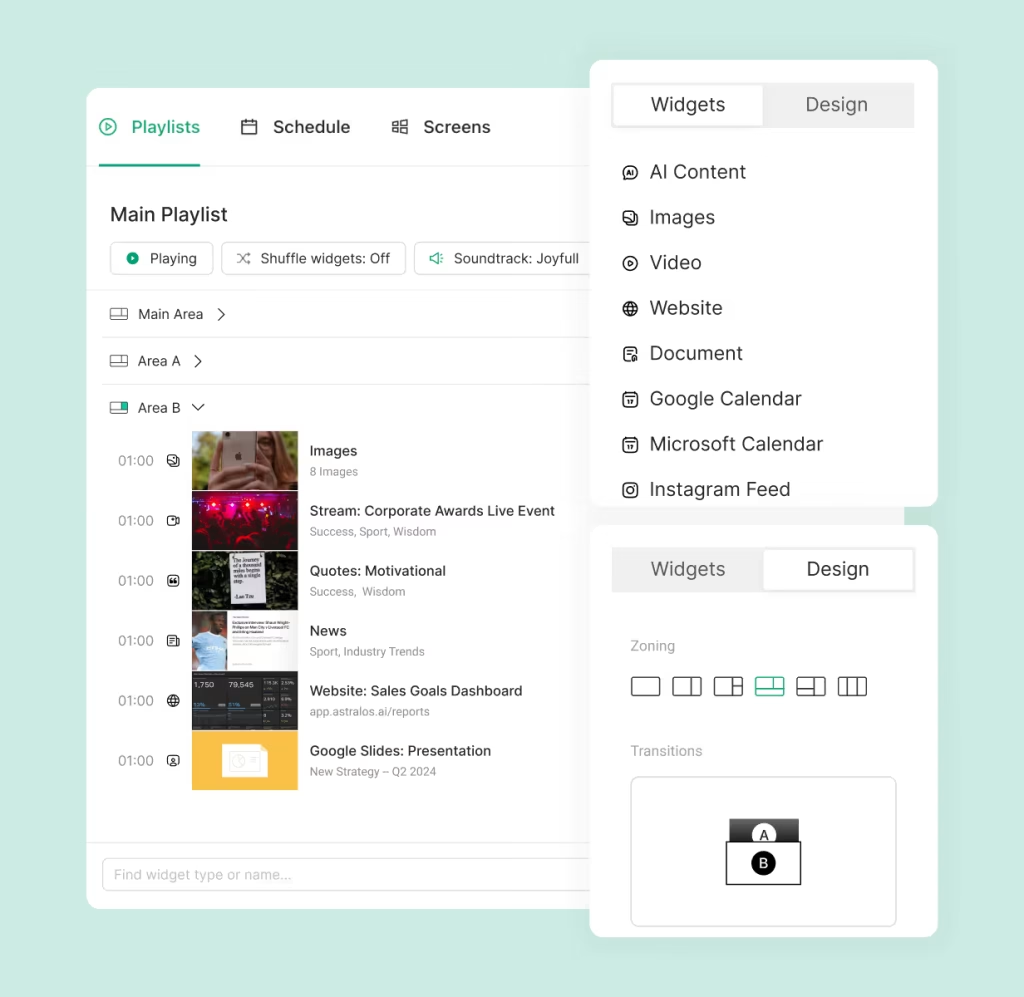
You can select a variety of social media widgets in Kitcast.
- Navigate back to the Widgets section of the dashboard.
- Select the playlist where you want the social wall to appear.
- Browse the widget library. You will see specific options like:
- Instagram Business Feed: Best for visual-heavy brands, retail stores, and coffee shops.
- Twitter (X) Feed: Great for news tickers, corporate communications, and conferences.
- Social Activity: A mix of feeds or aggregator styles depending on current updates.
- TikTok Feed: Perfect for youthful brands and high-energy environments.
- LinkedIn: great for professional events.
For this guide, let’s assume we are choosing the Instagram Feed as it is the most popular choice for a social media wall.
Step 3: Customize Your Wall

You do not want your social wall to look generic. You want it to look like your brand. Kitcast gives you customization tools to make the feed blend seamlessly with your venue’s aesthetic.
When the widget settings open, you will see several options:
- Source Selection: Choose the account you connected earlier. Some widgets also allow you to pull content based on a specific Hashtag.
- Pro Tip: Using a unique event hashtag (like #OurEvent2025) is the best way to get user-generated content from your audience onto the screen.
- Duration: How long should this social wall stay on the screen before the playlist moves to the next slide? A standard time is 15 to 30 seconds, but you can set it to run longer if it is the main feature of your lobby.
- Background: If your images don’t fill the whole screen, you can choose a background color or image that sits behind the feed.
If you are using this in a retail environment, think about legibility. Ensure the text isn’t too small. For more tips on retail setups, check out our guide to digital signage in-store experiences.
Step 4: Preview and Publish
Never publish without a final check.
- Click the Preview button within the dashboard. This simulates how the social wall will look on your TV.
- Watch a full cycle. Does the feed load correctly? Are the images clear? Is the hashtag pulling the right content?
- If everything looks good, click Save.
Now, assign this playlist to your screens.
- Go to the Screens tab.
- Select your target screen (e.g., “Lobby TV” or “Storefront Window”).
- Assign the playlist you just created.
Within seconds, your screen will update. You now have a live, dynamic social media wall running in your venue.
Why Kitcast is the Best Choice for Social Walls
You might be asking why you should use Kitcast for this instead of a USB stick or a browser window. The answer is stability and professional presentation.
1. “Set and Forget” Reliability
When you use a browser, it can crash. It can show pop-ups. It can log you out. Kitcast is a dedicated application that runs on robust hardware like Apple TV. It caches content so that even if your internet flickers, your screen doesn’t go black.
2. Enterprise-Grade Security
We don’t ask you to share your passwords insecurely. Our OAuth connections with platforms like Meta ensure that your social accounts remain safe while still allowing the screens to display your content.
3. Smart Caching
Social media uses a lot of data. Kitcast optimizes how it pulls this data so it doesn’t clog your store’s Wi-Fi network. It pulls the latest posts intelligently, ensuring fresh content without constant buffering.
You can learn more about our specific features on the Kitcast Widgets page.
Best Practices for a Successful Social Wall

Creating the wall is step one. Managing it is step two. Here are a few tips to ensure your social wall remains an asset, not a liability.
Encourage Participation
A social wall is only as good as the content feeding it. You need to tell people it exists.
- Put a sticker on your mirror: “Tag us to be featured!”
- Add the hashtag to your printed receipts.
- Mention it in your other digital signage slides.
Monitor Your Hashtags
If you are pulling content via a hashtag, remember that anyone can use that hashtag. While most people are nice, the internet can be unpredictable.
- Kitcast filters out standard inappropriate content, but it is always wise to check your feed occasionally.
- If you are running a high-stakes event, consider using a curated feed where you only display posts from your own account, and you repost user content manually to your account first. This gives you 100% control.
Mix Your Content
Don’t let the social wall run 24/7 if it’s the only screen you have. It can get repetitive.
- Use the Playlist feature to alternate content.
- Show 30 seconds of your Instagram feed.
- Then show 30 seconds of a promotional video.
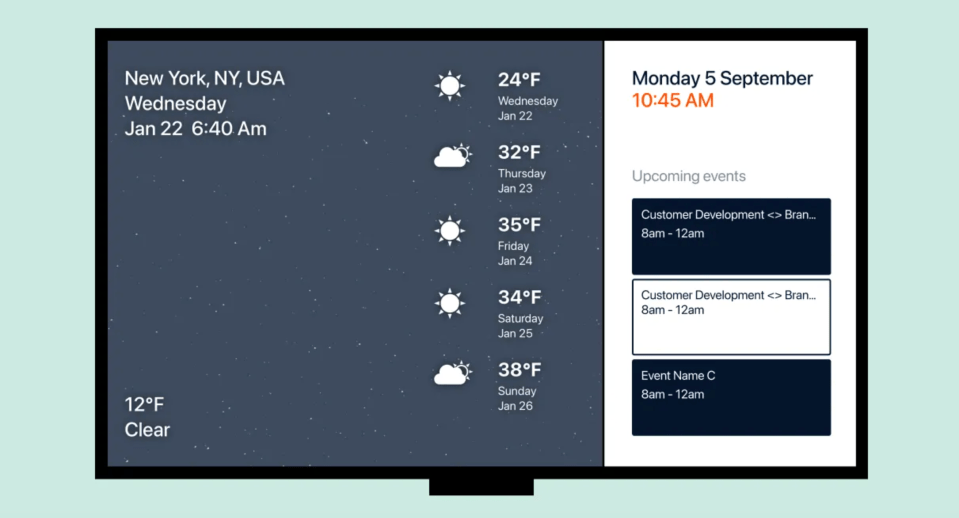
- Then show a weather widget.
- Then back to the social feed. This variety keeps the viewer’s eyes on the screen. For ideas on other types of content to mix in, read about lobby digital signage basics.
Unleash the power of social media walls now!
A social media wall bridges the gap between your online presence and your physical location. It validates your customers. It beautifies your space. It keeps your screens alive with fresh activity.
With Kitcast, this process is not technical. It is creative. By following this step-by-step guide on how to create a social media wall, you have unlocked a powerful tool in your marketing arsenal.
So go ahead. Log in. Connect your account. And let your customers tell your brand story for you.
Frequently Asked Questions (FAQ)
1. Do I need a paid account on Instagram or Twitter to use a social wall?
You do not need to pay Instagram or Twitter directly to post, but you generally need a “Professional” or “Business” account on Instagram (which is free to switch to) to allow third-party apps like Kitcast to connect to it.
2. Can I filter out bad posts from my social wall?
Kitcast pulls the live feed from your account or hashtag. The best way to moderate a hashtag feed is to ensure you pick a specific, unique hashtag for your event. For total control, we recommend displaying your own business profile feed, so only posts you have authored or reposted appear on the screen.
3. Does the social media wall update in real-time?
It updates very frequently. There is a slight delay (usually a few minutes) between someone posting on their phone and it appearing on the screen, which is standard for API connections to ensure system stability.
4. What happens if my internet goes down?
Kitcast has offline playback capabilities. If the internet cuts out, the screen will continue to display the cached content (the posts that were already loaded) until the connection is restored, so you never have a black screen.
5. Can I show Instagram and Twitter at the same time?
Yes. You can add both an Instagram widget and a Twitter widget to the same playlist. They will play one after the other. Or, you can use the layout tools to split the screen (if your specific hardware and plan support zoning) to show them side-by-side.
6. Which hardware is best for a smooth social media wall?
We highly recommend using an Apple TV for the smoothest animations and video playback. However, Kitcast also works wonderfully on Amazon Fire TV Sticks and Android TV devices.
7. How do I get more people to post for my wall?
Gamification works best. Run a contest where the “Best Photo of the Month” displayed on the wall wins a gift card. Make sure the instructions on how to tag you are clearly visible near the screen.
Ready to get started? Log in to Kitcast now and build your first wall today.
Guide to Digital Signage Zoning: Make The Most Of Your Screens

10 Best Digital Menu Board Software Solutions in 2026 (Ranked)